Windows Setup
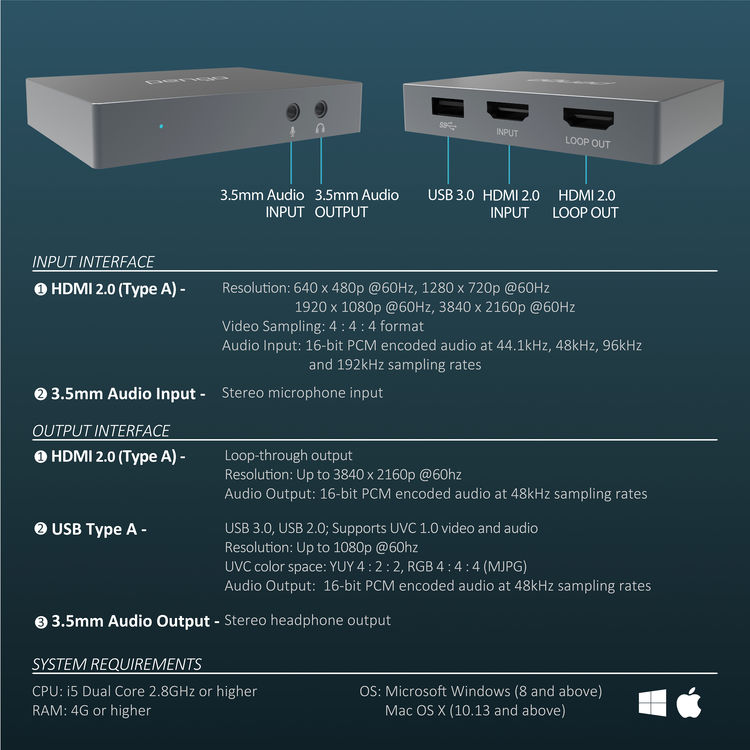
The Pengo 4K HDMI Grabber is plug-and-play on Windows 8, 10 and 11. It
shows up in Device Manager as a USB Video Class device (Pengo HDMI Grabber)
plus a USB Audio device — no driver installation required.
You have three recommended paths on Windows:
| Path | When to use |
|---|---|
| Pengo Tool + PotPlayer / OBS / VLC | You want to see live device info (firmware, formats, resolutions) and use the grabber as a webcam. The Pengo Tool is the official companion app. |
| OBS Studio directly | You want to stream or record. Skip Pengo Tool. |
| PotPlayer or VLC directly | Quick preview only. |
This page walks through the Pengo Tool path. See Pengo Tool → for the companion app details, firmware update, and the full UI reference.
1. Plug it in
Plug the included USB cable into a USB 3.0 port. The front blue LED should illuminate and Windows will enumerate the device in under a second.
2. Verify in Device Manager
Open Device Manager (⊞ Win + X → Device Manager). Confirm:
- Cameras →
Pengo HDMI Grabber - Sound, video and game controllers →
Pengo HDMI Grabber
3. Install Pengo Tool (optional but recommended)
The Pengo Tool is a small companion app Pengo Technology Co. published for Windows. It shows live info about the grabber (firmware, serial, current input/output formats and resolutions) and includes a firmware updater.
Hard to obtain now
Pengo Technology Co., Ltd. went out of business around 2024. The official installer is no longer hosted. This page documents the tool based on the original installation guide (Wayback Machine) so you can recognise it if you have a copy, or skip it and just use OBS / VLC / PotPlayer.
See Pengo Tool → for the full guide.
4. Use it as a webcam
In OBS Studio (recommended):
- Sources → + → Video Capture Device.
- Device: select
Pengo HDMI Grabberfrom the dropdown. - Resolution/FPS Type:
Custom. - Resolution:
1920×1080. FPS:60(or30for stability). - Video Format:
MJPG(recommended) orYUYV. - Buffering:
Auto-Detect. Click OK.
For audio, add an Audio Input Capture source pointing at the Pengo.
In PotPlayer:
- Menu → Open → Device Settings...
- Video capture device:
Pengo HDMI Grabber - Audio capture device:
WASAPI – Mic (Pengo HDMI Grabber) - Click Open device
In VLC:
- Media → Open Capture Device...
- Video device name:
Pengo HDMI Grabber - Audio device name:
Pengo HDMI Grabber - Click Play
5. Use it in conferencing apps
The grabber appears as a regular webcam in:
- Zoom (Settings → Video → Camera)
- Microsoft Teams (Settings → Devices → Camera)
- Google Meet / Chrome (site settings → camera)
- Discord (User Settings → Voice & Video → Camera)
- OBS Virtual Camera (if you want to feed OBS output into a meeting)
Just pick Pengo HDMI Grabber from the camera dropdown.
What won't work on Windows
- ❌ HDCP-protected sources. Netflix, Apple TV, Blu-ray, etc. — the grabber ignores HDCP and you'll get a black frame.
- ❌ 1080i sources. Use 1080p only.
- ❌ 4K capture. USB is capped at 1080p60. 4K only goes out the HDMI loop.
Next: macOS Setup →, or Linux → for the main event.